Introduction
If you work with Excel, one function can save you hundreds of hours every year—VLOOKUP.
Imagine you have thousands of records containing Product IDs, Employee IDs, Customer IDs, Patient IDs, or Student IDs. Instead of manually searching through the data, Excel can find the information for you instantly.
That’s exactly what the VLOOKUP function does.
VLOOKUP stands for Vertical Lookup. It searches for a value in the first column of a table and returns information from another column in the same row.
Whether you are a student, analyst, accountant, HR executive, marketer, or business manager, VLOOKUP is one of the most important Excel skills you can learn.
In this article, we will understand VLOOKUP from scratch using a real-world Hospital Analytics dataset and explore multiple practical examples.
Why is VLOOKUP Important in Business?
Organizations use VLOOKUP every day for:
HR Department
- Find employee names using Employee IDs
- Retrieve department information
- Fetch salary details
Finance Department
- Lookup customer payment details
- Verify invoice information
- Calculate commissions
Marketing Department
- Match customer information
- Segment customers
- Retrieve campaign details
Operations Department
- Track products and inventory
- Supplier information lookup
- Order verification
Healthcare Industry
- Retrieve patient details
- Find doctor information
- Lookup treatment charges
Dataset Used
We will use a Hospital Management dataset.
Patient Master Table
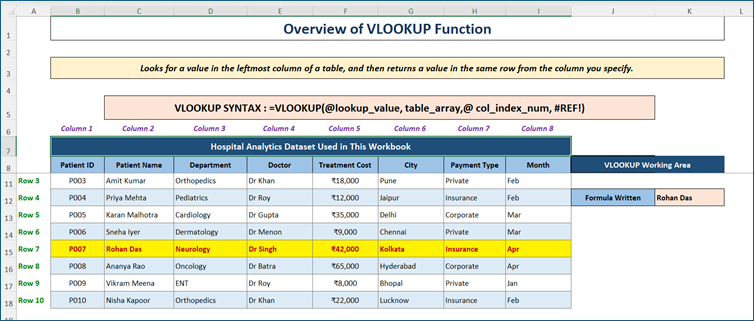
This table acts as our Master Database.
Understanding VLOOKUP Syntax
Formula:
=VLOOKUP (lookup value, table array, col_index_num, [range_lookup])
Explanation of Each Argument
lookup_value
The value you want to search.
Example:
Patient ID = P007
table_array
The complete table where Excel will search.
Example:
B11:I18
col_index_num
The column number from which data should be returned.
| Column | Number |
| Patient ID | 1 |
| Patient Name | 2 |
| Department | 3 |
| Doctor | 4 |
| Treatment Cost | 5 |
| City | 6 |
| Payment Type | 7 |
| Month | 8 |
range_lookup
FALSE = Exact Match
TRUE = Approximate Match
Most business users use FALSE.
Example 1: Retrieve Patient Name Using Patient ID
Objective
Find Patient Name from Patient ID.
Solution:
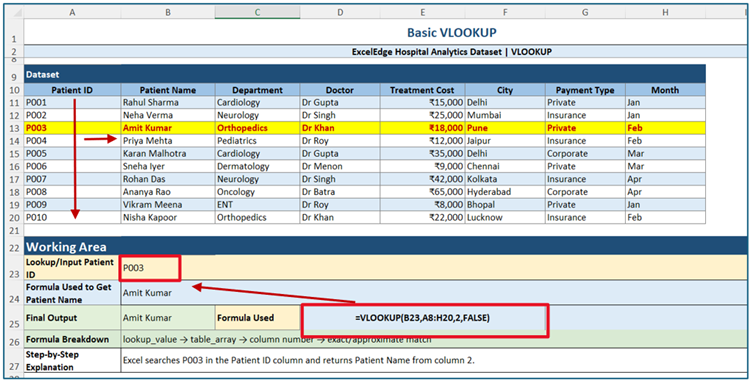
Formula
=VLOOKUP (B23, $A$8: $H$20,2, FALSE)
How It Works
Step 1:
Searches for P003
Step 2:
Finds P003 in first column
Step 3:
Moves to column 2
Step 4:
Returns Amit Kumar
Output
| Patient ID | Patient Name |
| P003 | Amit Kumar |
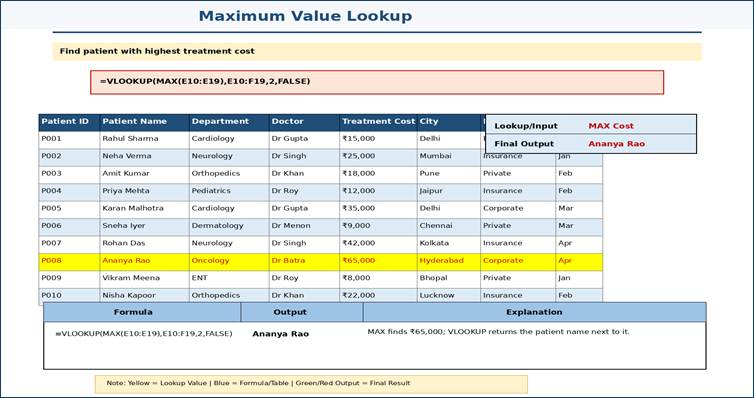
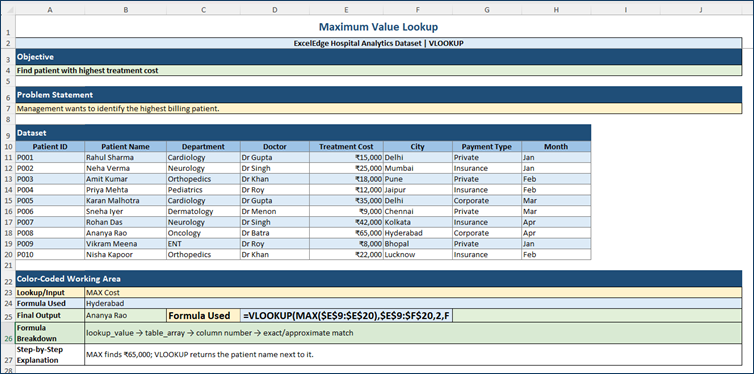
Example 2: Find Patient with Highest Treatment Cost
Objective
Find patient paying maximum treatment cost.
Formula
=VLOOKUP (MAX (E2:E21), E2:F21,2, FALSE)
Working
- MAX identifies highest treatment cost.
- VLOOKUP searches for that value.
- Returns corresponding patient name.
Output
| Highest Cost | Patient |
| 65000 | Ananya Rao |
Business Application
Hospital management identifies high-value cases.
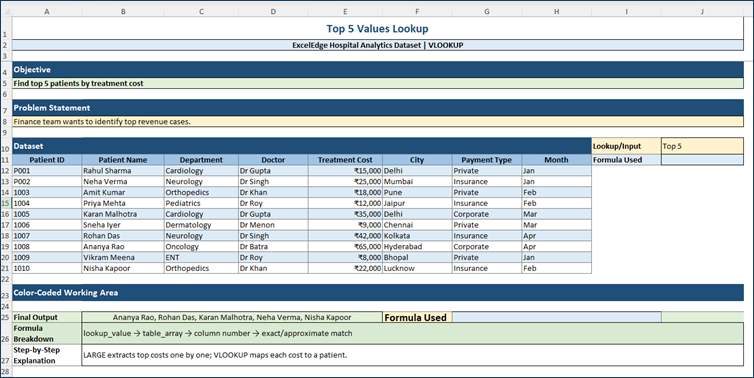
Example 3: Find Top 5 Patient with Highest Treatment Costs
Objective
Retrieve top 5 treatment cases.
Formula
=VLOOKUP (LARGE ($E$12: $E$21, ROW(A1)), $E$12: $F$21,2, FALSE)
Output
List of top 5 patients.
List of Top Cities
Business Application
Revenue analysis.
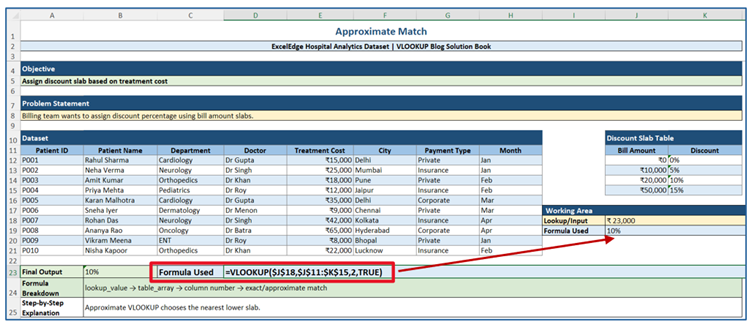
Example 4: Approximate Match Using Treatment Slabs
Objective
Assign discount based on bill amount.
Discount Table
| Cost | Discount |
| 0 | 0% |
| 10000 | 5% |
| 20000 | 10% |
| 50000 | 15% |
Formula
=VLOOKUP ($J$18, $J$11: $K$15,2, TRUE)
Output
Bill = 23000
Result = 10%
Business Application
Insurance and billing calculations.
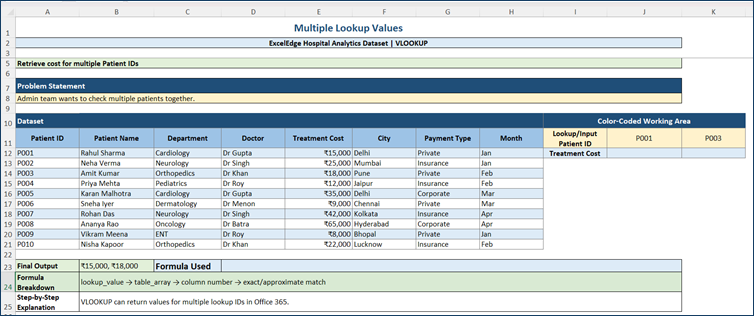
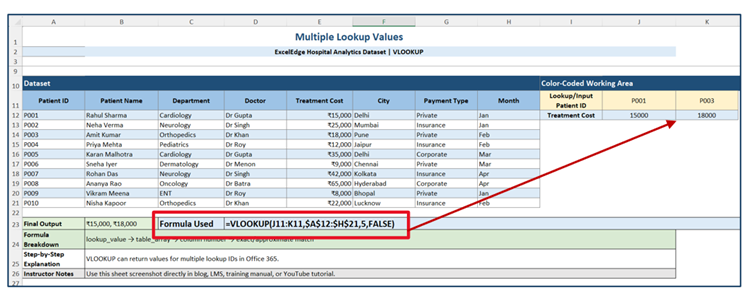
Example 5: Lookup Multiple Values at Once
Objective
Retrieve treatment cost for multiple patients simultaneously.
Formula
=VLOOKUP (J11:K11, $A$12:$H$21,5, FALSE)
Output
| Patient ID | Cost |
| P001 | 15000 |
| P003 | 18000 |
Business Application
Bulk reporting.
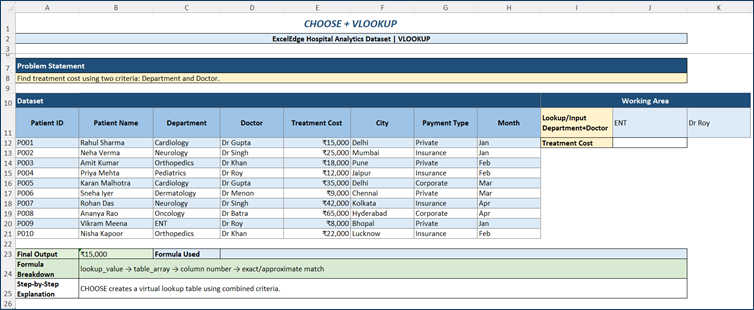
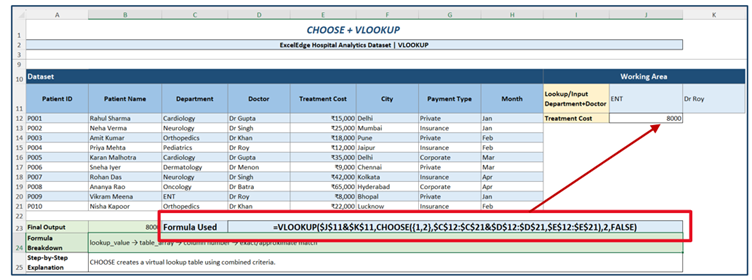
Example 6: Multiple Criteria Using CHOOSE + VLOOKUP
Objective
Find treatment cost using Department and Doctor.
Formula
=VLOOKUP ($J$11&$K$11, CHOOSE ({1,2}, $C$12: $C$21&$D$12: $D$21, $E$12: $E$21),2, FALSE)
Output
Department = ENT
Doctor = Dr. Roy
Result = 8000
Business Application
Advanced search conditions.
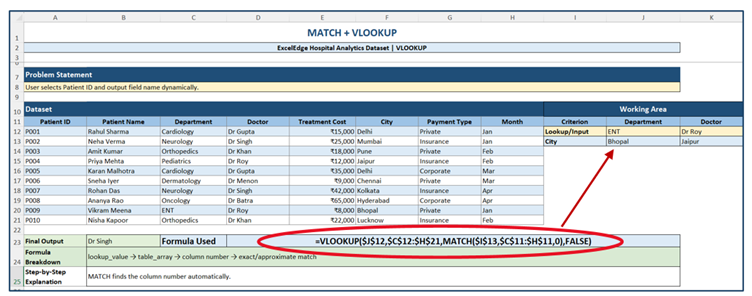
Example 7: VLOOKUP + MATCH Combination
Objective
Create dynamic lookups.
Formula
=VLOOKUP ($J$12, $C$12: $H$21, MATCH ($I$13, $C$11: $H$11,0), FALSE)
Output
Users can select any field dynamically.
Business Application
Interactive dashboards.
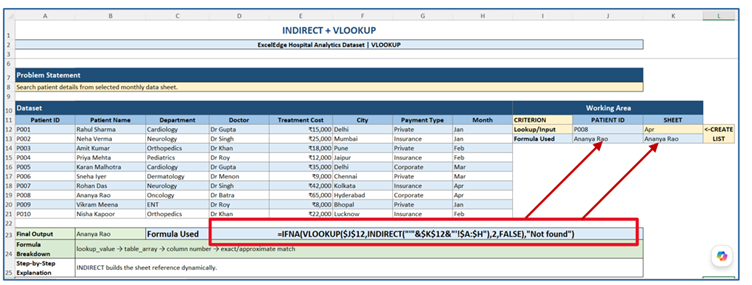
Example 8: VLOOKUP + INDIRECT Across Multiple Sheets
Objective
Search records from Monthly Admission Sheets.
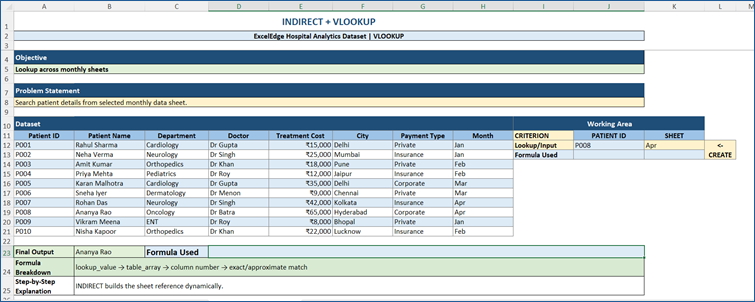
Sheets:
- January Named as Jan
- February Named as Feb
- March Named as Mar
- April Named as Apr
Formula
=IFNA (VLOOKUP ($J$12, INDIRECT (“‘”&$K$12&”‘! $A: $H”),2, FALSE),”Not found”)
Output
Patient information from selected month.
Business Application
Multi-sheet reporting.
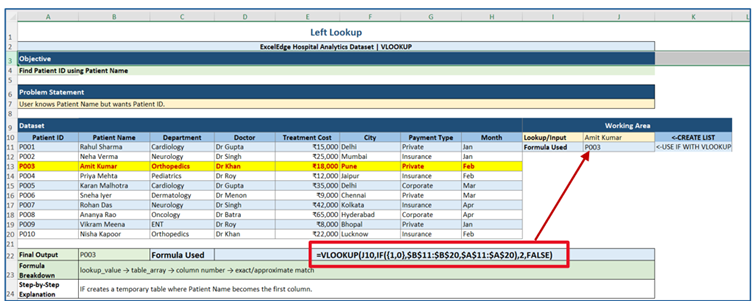
Example 9: Left Lookup Using VLOOKUP
Objective
Find Patient ID using Patient Name.
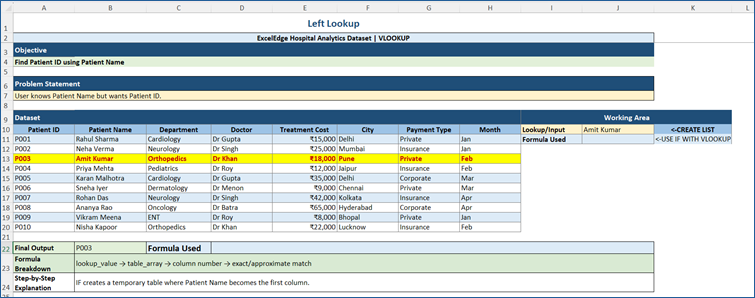
Formula
=VLOOKUP (H2, IF ({1,0}, B2:B100, A2:A100),2, FALSE)
Output
Patient Name = Amit Kumar
Result = P003
Business Application
Reverse searching.
Common Errors in VLOOKUP
#N/A Error
Reason:
Value not found.
Solution:
Check spelling and spaces.
#VALUE! Error
Reason:
Incorrect column number.
Solution:
Verify col_index_num.
#REF! Error
Reason:
Column number exceeds table width.
Solution:
Check table range.
Limitations of VLOOKUP
1. Searches Only Left to Right
Cannot normally lookup left.
2. Returns First Match Only
Duplicates are ignored.
3. Column Insertions Can Break Formulas
Changing table structure affects results.
4. Slower on Large Datasets
Performance issues on very large files.
Better Alternatives
- XLOOKUP
- INDEX + MATCH
- FILTER Function
Best Practices for Using VLOOKUP
✔ Always use FALSE for exact matching.
✔ Lock table references using F4.
✔ Use named ranges.
✔ Clean spaces using TRIM.
✔ Use IFERROR to handle errors.
Example:
=IFERROR (VLOOKUP (H2, A2:E100,2, FALSE),”Not Found”)
Conclusion
VLOOKUP is one of the most valuable Excel functions for business professionals. It helps retrieve information quickly, automate reporting, reduce manual work, and improve accuracy.
In this article, we learned:
- Basic VLOOKUP
- Maximum value lookup
- Top N analysis
- Approximate matching
- Multiple lookups
- CHOOSE + VLOOKUP
- MATCH + VLOOKUP
- INDIRECT + VLOOKUP
- Left lookup techniques
- Common errors
- Limitations and alternatives
Once you master VLOOKUP, you can build powerful reports, dashboards, and business solutions with confidence.
Start practising today, and you’ll soon discover why VLOOKUP remains one of Excel’s most trusted and widely used functions.
Dr. Arpana Chaturvedi