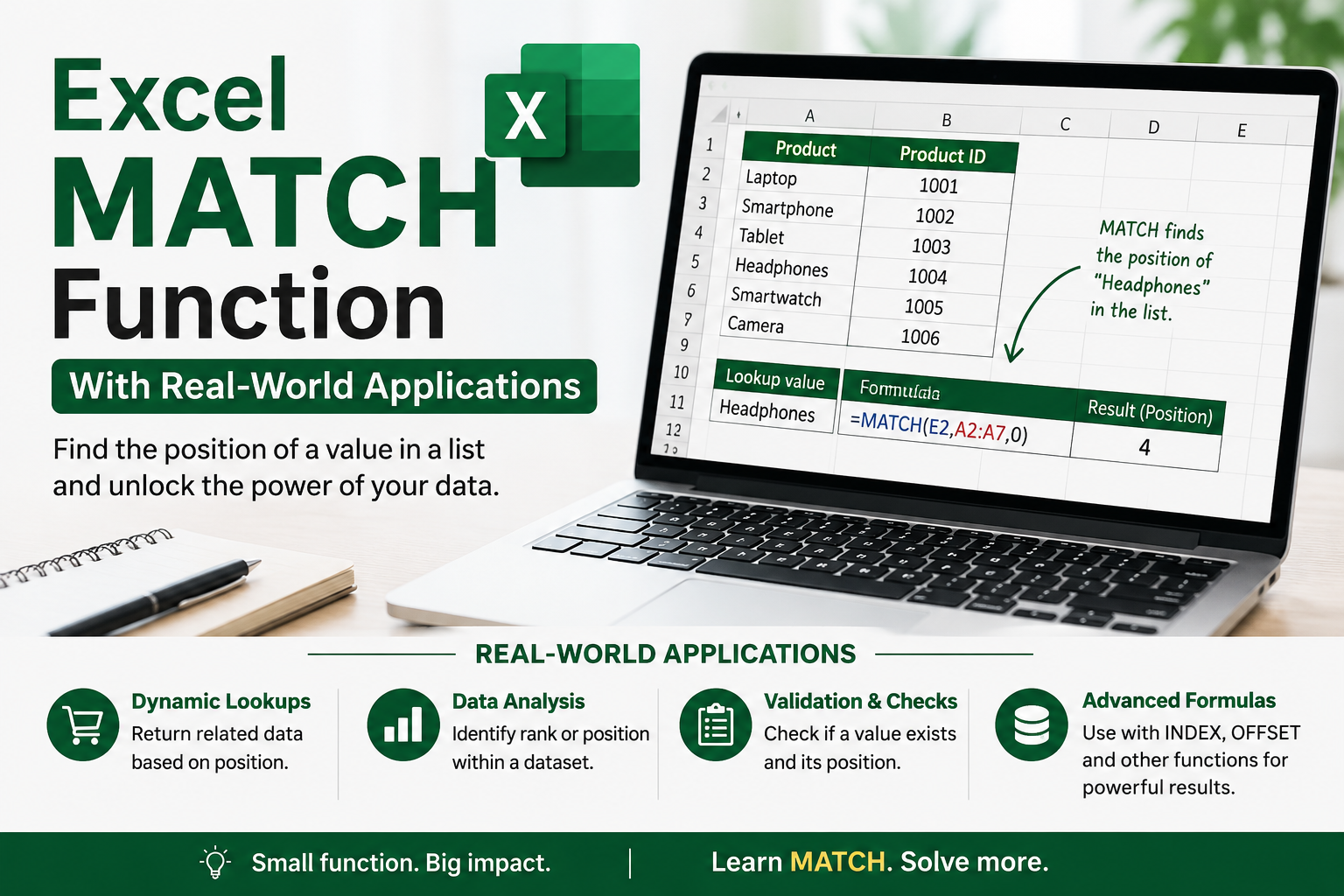
Introduction to MATCH Function in Excel
In Excel, finding specific information from large datasets is one of the most important tasks in data analysis. Organizations working in Finance, HR, Marketing, Operations, Sales, and Supply Chain regularly search for employee records, customer IDs, product names, transaction numbers, and performance data.
The MATCH function helps us locate the position of a specific value in a row or column. Instead of manually searching through hundreds or thousands of records, MATCH automatically identifies the relative position of the required item.
The MATCH function becomes extremely powerful when combined with functions like:
• INDEX
• VLOOKUP
• HLOOKUP
• IF
• EXACT
• ISNA
• Conditional Formatting
MATCH is widely used in:
• Employee management systems
• Sales dashboards
• Financial reporting
• Inventory tracking
• Data validation
• Reconciliation processes
• Dynamic dashboards
• Business intelligence reports
About the Dataset
The dataset used in this exercise is an Employee Analytics Dataset that represents real-world organizational employee records. It contains information such as Employee ID, Employee Name, Department, Salary, and Joining Year.
This dataset helps students understand how the MATCH function is used in industries for searching, comparing, validating, and retrieving employee-related information quickly and efficiently.
Columns Included
• Emp_ID – Unique employee identification number
• Employee_Name – Name of employee
• Department – Department of employee
• Salary – Monthly salary of employee
• Joining_Year – Year employee joined organization

Why This Dataset is Used
This dataset is useful for practicing:
• Exact Match
• Approximate Match
• Wildcard Search
• INDEX + MATCH
• VLOOKUP + MATCH
• Data Validation
• Employee Comparison
Industry Applications
Similar datasets are widely used in:
• HR Management Systems
• Payroll Systems
• ERP Software
• Business Intelligence Dashboards
• Employee Performance Tracking
• MIS Reporting
The dataset provides a practical understanding of how Excel functions are used in real corporate environments for data analysis and reporting.
What is the MATCH Function?
The MATCH function searches for a specific value in a range and returns its relative position.
Syntax of MATCH Function
=MATCH(lookup_value, lookup_array, match_type)

Arguments of MATCH Function
1. lookup_value
The value you want to search.
Example:
• Employee Name
• Product ID
• Salary
• Department
2. lookup_array
The range where Excel searches for the value.
Example:
A2:E11
3. match_type
Defines the type of matching.
| Match Type | Meaning |
| 0 | Exact Match |
| 1 | Approximate Match (Ascending Order) |
| -1 | Approximate Match (Descending Order) |
Dataset Used in This Exercise
We are using an Employee Analytics Dataset containing:
| Emp_ID | Employee_Name | Department | Salary | Joining_Year |
This dataset represents a real HR Management system.
Case 1 – Exact Match Using MATCH Function
Objective
Find the exact position of an employee name in the dataset.
Formula
=MATCH (H2, B3:B12,0)
Explanation
• H2 contains the employee name to search
• B3 is the Employee Name column
• 0 means exact match
Example

Search Employee:
Rohan
Output:
5
This means Rohan is at the 5th position inside the selected range.
Real-World Application
Used in:
• Employee database search
• Customer lookup systems
• Product tracking
• Attendance systems
• Student record management
Important Point
Exact Match is the most commonly used MATCH type in industry.
Case 2 – Approximate Match
Objective
Find the nearest matching salary position.


Formula
=MATCH(H2, D3:D12,1)
Explanation
• Searches for approximate values
• Data must be sorted in ascending order
• Returns largest value less than or equal to lookup value
Example
Lookup Salary:
60000
MATCH returns the nearest lower salary position.

Real-World Application
Used in:
• Tax slab calculations
• Incentive systems
• Grade allocation
• Loan interest categories
• Commission calculations
Important Rule
The lookup column MUST be sorted in ascending order.
Case 3 – Wildcard Match
Objective
Search using partial text.


Formula
MATCH(H2, B3:B12,0)
Lookup Value:
Aa*
Explanation
Wildcard characters help search partial text.
| Wildcard | Meaning |
| * | Multiple characters |
| ? | Single character |
Example
Aa*
Can match:
• Aarav
• Aakash
• Aanya

Real-World Application
Used in:
• Searching customer names
• Product codes
• Invoice numbers
• Partial employee names
• Search boxes in dashboards
Case 4 – INDEX and MATCH Combination
Objective
Find corresponding department using employee name.


Formula
=INDEX (C3:C12, MATCH(H2,B3:B12,0))
Explanation
MATCH finds the row position.
INDEX returns the value from another column.
Example
Search:
Ananya
Result:
IT

Why INDEX + MATCH is Powerful
It is more flexible than VLOOKUP because:
• Works left to right and right to left
• Faster for large datasets
• Dynamic and scalable
• Used in dashboards and MIS systems
Real-World Application
Used in:
• HR analytics
• Financial dashboards
• ERP systems
• Supply chain reporting
• Dynamic reporting systems
Case 5 – Case-Sensitive Match
Objective
Distinguish between uppercase and lowercase text.


Formula
=MATCH(TRUE, EXACT(H2, B3:B12),0)
Explanation
EXACT compares text exactly including case sensitivity.
Example:
• Aarav ≠ aarav

Real-World Application
Used in:
• Password systems
• User ID validation
• Sensitive database systems
• Authentication processes
Important Point
MATCH alone is not case-sensitive.
We use EXACT with MATCH to create case-sensitive searches.
Case 6 – Compare Two Columns
Objective
Find missing employees between two lists.

Formula
- Select cell D4 and enter this formula for a Case-Insensitive Search.
=IF(ISNA(MATCH(D4,$B$4:$B$13,0)), “Not in List 1”, “”)
- For case-sensitive searches, use this formula in cell E4.
=IF(ISNA(MATCH(TRUE, EXACT(B:B, E4),0)), “Not in List 1”, “”)
Explanation
• MATCH searches for value
• ISNA checks if value is missing
• IF displays message
Example
If Rahul is missing from List 1:
Output:
Not Found

Real-World Application
Used in:
• Employee attendance verification
• Inventory reconciliation
• Bank reconciliation
• Duplicate checking
• Audit processes
Case 7 – VLOOKUP with MATCH
Objective
Create dynamic column lookup.
Formula
= VLOOKUP(H2, B3:E12,MATCH(G3,B2:E2,0),FALSE)
Explanation
MATCH dynamically finds column number.
VLOOKUP retrieves the value.
Example
Employee:
Aarav
Field:
Salary
Output:
55000
Why This is Useful
Instead of manually changing column numbers, MATCH automatically finds them.
Real-World Application
Used in:
• Interactive dashboards
• Dynamic reports
• HR reporting systems
• Sales analysis
• MIS reporting
Case 8 – HLOOKUP with MATCH
Objective
Perform horizontal lookup dynamically.

Formula
=HLOOKUP(H2, B16:K19, MATCH(H3,A16:A19,0),FALSE)
Explanation
• HLOOKUP searches horizontally
• MATCH finds row position dynamically
Real-World Application
Used in:
• Horizontal dashboards
• KPI reports
• Performance scorecards
• Financial statement analysis
Advantages of MATCH Function
• Fast searching
• Dynamic formulas
• Reduces manual work
• Works with multiple functions
• Useful in automation
• Improves dashboard efficiency
• Better than manual searching
Industry Applications of MATCH Function
| Department | Usage |
| HR | Employee search and validation |
| Finance | Financial lookup and reconciliation |
| Marketing | Customer segmentation |
| Operations | Inventory matching |
| Supply Chain | Vendor and shipment tracking |
| Education | Student record management |
| Banking | Account verification |
Important Things to Remember
• MATCH returns position, not value
• Approximate match requires sorted data
• MATCH finds first occurrence only
• Use IFERROR or ISNA for error handling
• MATCH becomes powerful with INDEX
Common Errors in MATCH Function
| Error | Reason |
| #N/A | Value not found |
| Wrong Position | Incorrect match type |
| Incorrect Result | Unsorted data in approximate match |
Best Practices
• Always use exact match unless needed
• Use named ranges for readability
• Combine with INDEX for advanced lookups
• Use IFERROR for professional dashboards
• Keep datasets clean and structured
Conclusion
The MATCH function is one of the most important lookup and reference functions in Excel. It helps organizations quickly locate data positions and automate reporting tasks. Whether working in HR, Finance, Marketing, Supply Chain, or Analytics, professionals use MATCH regularly for dynamic reporting and business intelligence.
Mastering MATCH helps students:
• Build smart dashboards
• Improve analytical skills
• Perform data validation
• Create automation-based reports
• Prepare for placements and certifications
MATCH is not just an Excel formula — it is a business productivity tool widely used across industries.
Practice More!
With Nest Wishes
Dr Arpana Chaturvedi